
Table of Contents
Welcome to Storyboard+ 2.0, the fastest way to impress your promotional product clients. We have spent over a year making this award-winning tool even better. This blog will run through how to get started and take advantage of the latest upgrades.
Getting Started
Visit www.storyboard.plus and browse 1,000’s of top-selling promotional products using our search bar and filters.

Click Add on any item to include it on your Storyboard
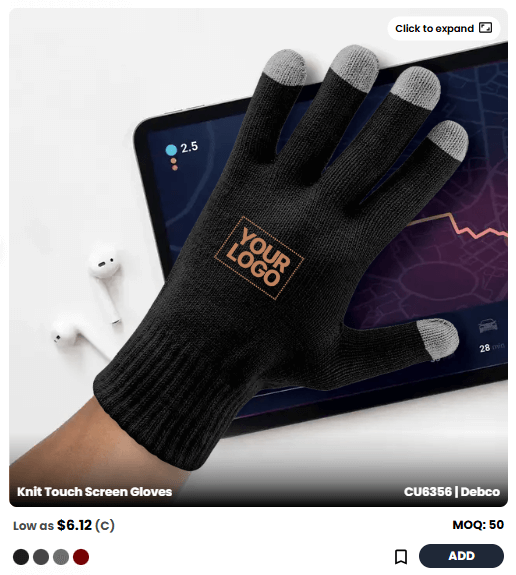
Click Preview in the top-right of your screen to name your Storyboard and select your preferences,
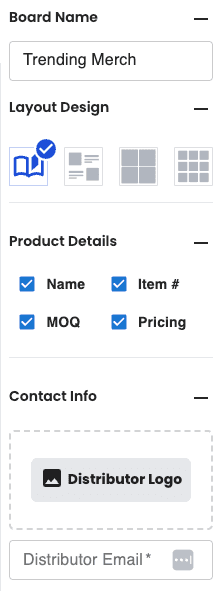
Click or copy the client-friendly link to view and share your storyboard; it’s that easy.

But wait, there's so much more!
Brand Every Product
Skip a step in the sales cycle by adding the client logo to your storyboard, so you provide both product ideas and virtuals in one.
In the top-left of your screen, click on the Logos button to see the preloaded placeholder logos, and simply click the Upload Client Logo button here to add your client’s logo to every product on Storyboard+ instantly.
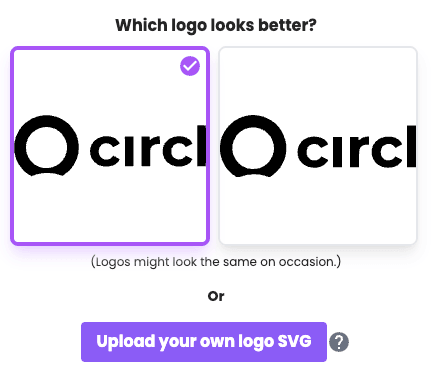
Storyboard+ uses AI to vectorize files of any format and will guess what the one-color version of the logo will be. If neither guess is suitable, you can upload an alternative SVG file here
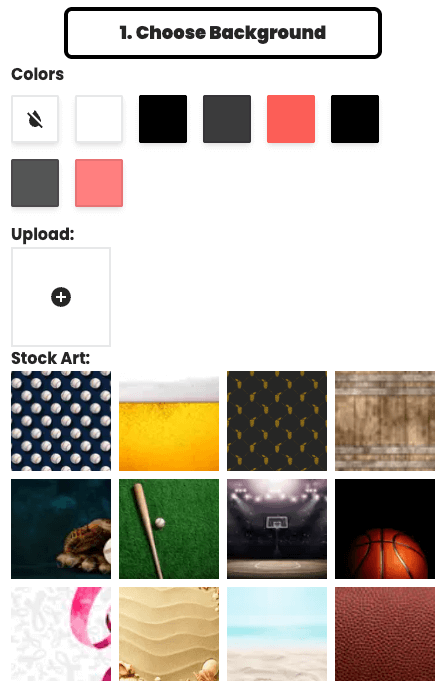
In the final step, you can choose how to make products with large full-color imprint areas stand out.Storyboard+ automatically identifies the logo colors, which you could use to fill the background. You can also choose a stock background from our library, or you can upload your own
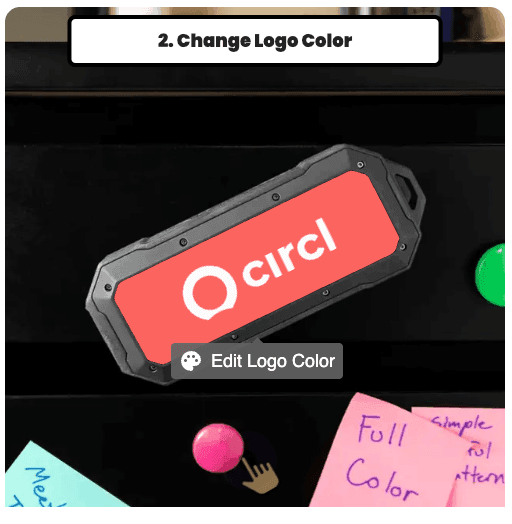
Depending on the background you choose, you may want to make your logo white, black, one color or full-color which you can do by clicking on the logo on the example product.
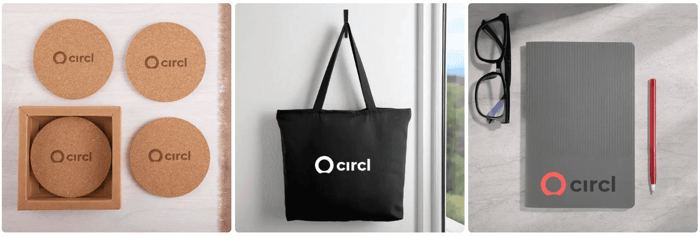
Now you will see the logo on your products but also in your own library for future storyboards. If you log in to the tool using an email address, these logos will be saved to your profile so you can find them on any device you log in to with that email, including your smartphone or tablet
Saving your Boards
Under Boards in the left column menu, you will see that it has a counter showing how many products you have added to your storyboard. It also shows the logo you've applied and when it was last updated. You can give it a name by clicking Preview in the top-right of your screen.
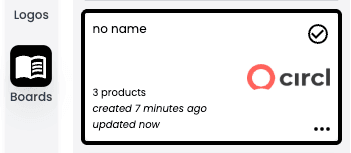
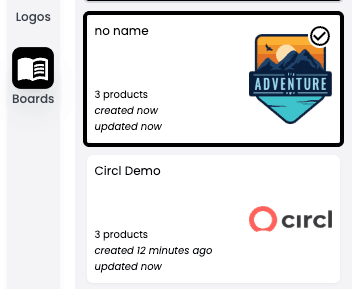
This Board is saved and time-stamped so you can keep track of all of your boards and go back to them in the future.
If you’re happy with your selections and want to customize a storyboard for another client, go back to your Logos library, and upload or select their logo. Select Keep products, and you will now see a new Board has been created with the same products selected.
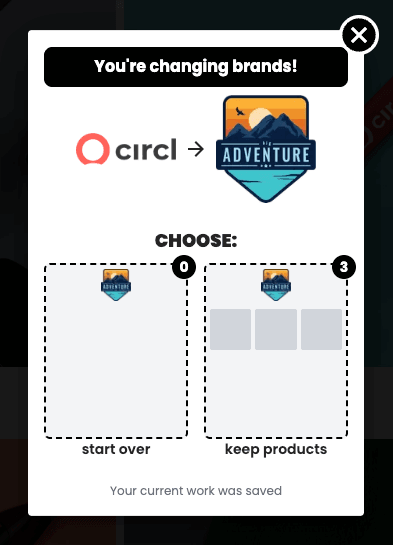
Catalog+ & How to Create Your Own Catalogs
There are 1,000's of products to choose from on Storyboard+ so we have curated popular project selections into catalogs which you can browse under Catalog+. Browse catalogs based on brand, theme, product category, vertical market, and more! More catalogs will be added or refreshed every month so keep checking Catalog+ for fresh ideas to pitch your clients.

Now you can also create your own catalogs of products by using the bookmark icon shown next to the Add button on any product.

Simply click the bookmark icon, and Create new catalog to get started, add any name, description you'd like, this catalog will be private to your guest or actual account.

Once you have one or more catalogs created, you can click the bookmark icon on any item and select which of the catalogs you'd like to add it to.
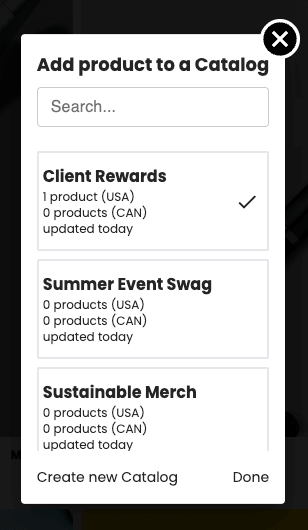
You can view all of your personal catalogs by clicking Catalog+ in the top menu.
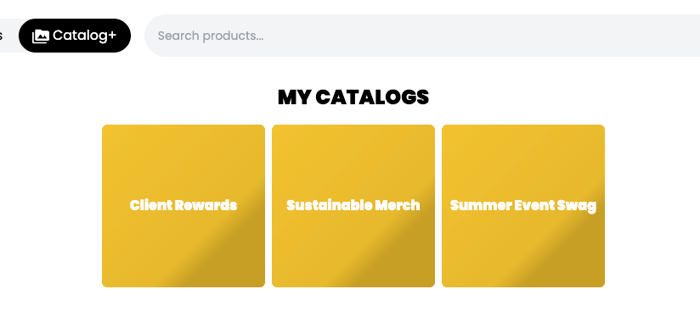 Catalog+ allows you to curate your own greatest hits of product collections and use them again and again. Click on any of your catalogs to view the products. From here you can click one button to add them all to a board or click edit to remove items and adjust their order by clicking and dragging them.

Make Your Mark
Storyboard+ will always be free to use for distributors because we succeed when you do. We believe with new features for Logos, Boards, and Catalog+ you can build stunning storyboards faster than ever and convert more business opportunities as a result.
Click here to Make Your Mark with Storyboard+ 2.0